🚀SEO That Drives Real Traffic & Leads
How many people visit your website each month?
If your business is like most local companies, the answer is “not many.”
Most small businesses invest in a website—but never invest in driving traffic to it. And honestly, that’s not your fault. You’re a busy business owner.
You’re handling accounting, hiring, operations, and customer service. Who has time to figure out the ins and outs of SEO and digital marketing?
That’s exactly why so many businesses in Minneapolis trust their SEO and content marketing to the Clayton Johnson SEO team.
🔍 So… What Is SEO?
SEO (Search Engine Optimization) is the process of increasing your website’s visibility in search engines so your business appears at the top of Google when customers search for services you offer.
📈 Effective SEO:
- Drives more leads than any other marketing channel
- Increases clicks from high-intent searches
- Builds trust (people trust top search results)
Let’s be honest—nobody goes to page two of Google.
I help implement proven SEO services that:
✅ Drive more traffic
✅ Improve local rankings
✅ Outperform your competition
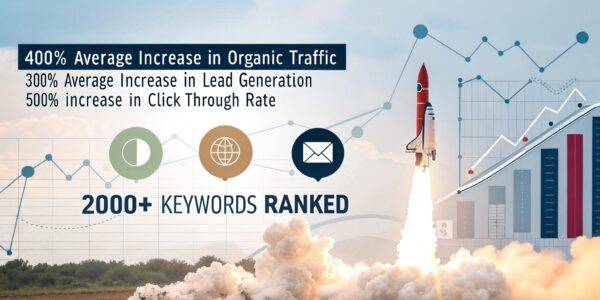
🚀 Providing Rocket Fuel in Minneapolis Since 2012
Since 2012, I’ve been helping Minneapolis businesses pour rocket fuel on their digital marketing.
Why rocket fuel?
Because when SEO is done right, rankings don’t just improve—they take off 🚀
My strategies are designed to push your website:
🔥 To the first page
🔥 To the top of search results
🔥 In front of customers ready to buy
🧠 What Makes Us Different From Other SEO Agencies?
🎓 Expertise
We use up-to-date SEO and digital marketing practices backed by over a decade of experience.
We’ve helped hundreds of businesses increase rankings, leads, and sales. SEO is the most powerful way to move customers through your funnel—and we know how to do it right.
🎯 Goals Come First
I’ll take time today to talk through your website and business goals—seriously, try me.
We’ll:
✅ Review your current site
✅ Identify opportunities
✅ Understand your industry (we’ve probably worked in it before)
If you’re ready to level up your local SEO, we’ll:
🔍 Perform a full SEO audit
📊 Conduct keyword research
🧭 Build a custom strategy for your business
🤝 Real Partnerships, Real Results
We take a customer-centered approach to SEO.
If your site isn’t performing the way it should, we double down until it does. That’s how we’re able to offer guaranteed results and earn consistent 5-star reviews.
📈 SEO Case Study: 400% Increase in Organic Traffic
Satellite Industries is a leading innovator in the portable sanitation industry.
Using a custom SEO strategy focused on:
✅ Targeted service pages
✅ Strategic content marketing
✅ High-authority off-site placements
Increased organic traffic by over 400%.

🏆 Minneapolis SEO Expert
Ready to take your business to the next level?
I’ll personally take time today to discuss your SEO strategy and show you exactly how we can increase your traffic, rankings, and leads.