Setting Up Your Environment for Claude for Python Coding
Setting up Claude for Python coding is a straightforward process, but doing it correctly ensures you have access to the full “agentic” power of the tool rather than just a simple chat interface. To get started, you’ll need Python 3.10 or later installed on your machine.

The first step is to install the Claude Agent SDK (formerly known as the Claude Code SDK). This package is unique because it automatically bundles the Claude Code CLI, meaning you don’t need a separate installation to start running terminal commands.
Installing the Claude Code CLI and SDK
To install the SDK and CLI in one go, run the following command in your terminal:
pip install claude-agent-sdk
Once installed, you need to authenticate. We recommend getting an API key from the Anthropic Console and setting it as an environment variable in your shell configuration (like .bashrc or .zshrc):
export ANTHROPIC_API_KEY='your-api-key-here'
For those working in enterprise environments, the SDK also supports third-party providers. You can configure it to use Amazon Bedrock by setting CLAUDE_CODE_USE_BEDROCK=1 or Google Vertex AI with the appropriate credentials. This flexibility is a core reason why Claude AI coding 101 is becoming the standard for modern dev teams.
Configuring IDE Integrations for VS Code and JetBrains
While the CLI is powerful for automation, most of our daily Claude for Python coding happens inside an IDE. Anthropic provides robust support for the most popular environments:
- VS Code: Install the official Claude Code extension. It allows for interactive diff viewing and shares your selection context directly with the agent.
- JetBrains: There is a dedicated Claude Code plugin for PyCharm and IntelliJ that supports context sharing and interactive coding.
- Cursor: Many developers use a hybrid approach, leveraging Cursor’s native AI features alongside the Claude Agent SDK for custom automation scripts.
By supercharging your IDE with Claude extensions, you bridge the gap between “writing code” and “orchestrating an AI agent.”
Mastering the Claude Agent SDK: query() vs. ClaudeSDKClient
When we move from the terminal to writing Python scripts that control Claude, we have to choose between two primary interaction methods. Understanding this choice is the difference between a script that works and one that scales.
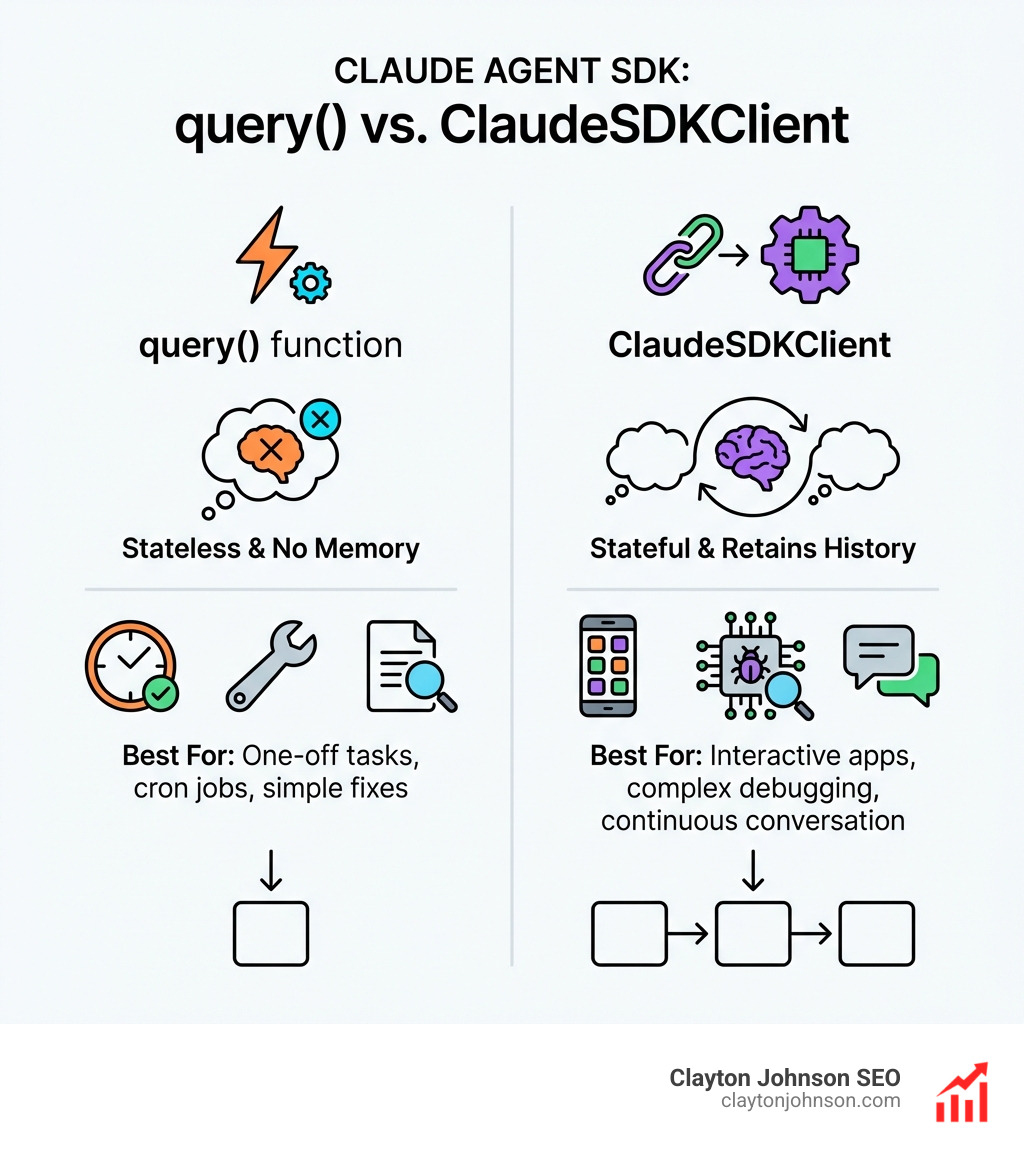
| Feature | query() function |
ClaudeSDKClient |
|---|---|---|
| Session Type | Stateless (New session every time) | Stateful (Continuous conversation) |
| Context | No memory of previous calls | Retains history across multiple turns |
| Best For | One-off tasks, cron jobs, simple fixes | Interactive apps, complex debugging |
| Complexity | Very Low | Moderate |
Simple Tasks with query() for Claude for Python Coding
The query() function is your “easy button.” It’s designed for one-off tasks where you don’t need Claude to remember what happened five minutes ago. For example, if you want to summarize a Python file or generate a quick unit test, query() is the way to go.
from claude_agent_sdk import query

async def summarize_code():
 async for message in query(prompt="Summarize the logic in auth.py"):
 print(message.content)
This method is perfect for Claude coding workflows that involve batch processing. You can loop through a directory of files and send a separate query() for each one without worrying about token limits from previous conversations bleeding into the new request.
Building Continuous Conversations: Claude for Python Coding
If you are building a tool that requires back-and-forth—like a debugger that suggests a fix, waits for you to run it, and then analyzes the error—you need ClaudeSDKClient. This class maintains a persistent session.
from claude_agent_sdk import ClaudeSDKClient

async def interactive_debug():
 async with ClaudeSDKClient() as client:
 # First turn: Identify the bug
 response1 = await client.query("Find the bug in this function...")
 # Second turn: Claude remembers the first turn
 response2 = await client.query("Now write a pytest for that fix.")
Using the client allows for mastering the Claude AI code generator because it mimics a real pair-programming session. You can set max_turns to prevent the agent from looping infinitely and use max_budget_usd to keep your API costs under control.
Extending Claude with Custom MCP Tools and Hooks
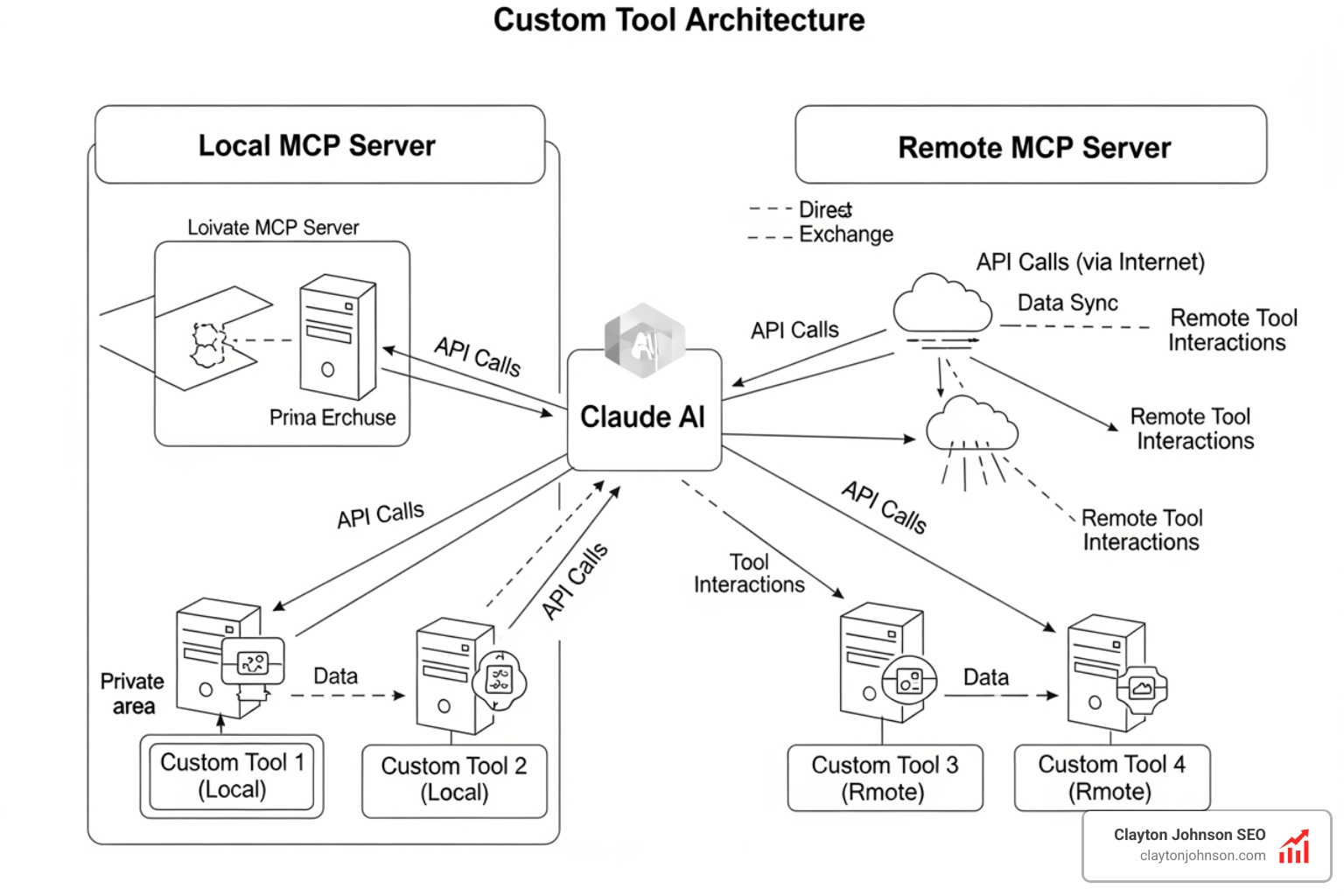
One of the most powerful features of Claude for Python coding is the Model Context Protocol (MCP). Think of MCP as a way to give Claude “hands.” By default, Claude can read files and run bash commands. With custom tools, you can give it the ability to query your production database, send a Slack message, or interact with a specific internal API.
Creating Custom MCP Tools with the @tool Decorator
The SDK makes creating tools incredibly easy using the @tool decorator. These are “in-process” tools, meaning they run in the same Python process as your SDK script, which is faster and easier to debug than external MCP servers.
from claude_agent_sdk import tool, create_sdk_mcp_server

@tool(description="Calculate the growth rate of a specific SEO keyword")
async def get_keyword_growth(keyword: str) -> dict:
 # Your custom logic here
 return {"keyword": keyword, "growth": "15%"}

mcp_server = create_sdk_mcp_server(tools=[get_keyword_growth])
By defining clear input schemas, you ensure type safety. This is the secret sauce of AI tool extensions; it allows Claude to understand exactly what data it needs to provide to use your tool successfully. You can extend Claude with custom agent skills to handle everything from database optimization to automated PR reviews.
Implementing Hooks for Deterministic Automation
Hooks are Python functions that trigger at specific points in Claude’s execution loop. They are essential for security and deterministic behavior. There are 8 types of hooks, but the most common are PreToolUse and PostToolUse.
For instance, if you want to prevent Claude from ever running a “delete” command in your terminal, you can implement a PreToolUse hook:
def block_dangerous_commands(input_data):
 if "rm -rf" in input_data.command:
 return {"allow": False, "reason": "Destructive commands are blocked."}
 return {"allow": True}
This provides a layer of safety that standard API calls lack. You can find more details in the Claude Code Hooks Reference.
Advanced Workflows: Code Interpreter and Project Intelligence
As we move into 2025, the release of the Code Interpreter (often called “Upgraded file creation and analysis”) has changed the game for data-heavy Python tasks.
Leveraging the Code Interpreter for Data Analysis
The Code Interpreter allows Claude to write and execute Python code in a secure, server-side sandbox. Unlike the previous browser-based tools, this version runs on Ubuntu 24.04 with 9GB of RAM and can even pip install packages from PyPI.
This is perfect for:
- Data Science: Upload a 30MB SQLite database and ask Claude to generate a PDF join diagram.
- Visualization: Use Matplotlib or Seaborn to recreate complex charts from CSV data.
- File Transformation: Convert Excel sheets to clean JSON or Markdown.
When you use Claude for these tasks, it acts as the best AI for coding and debugging because it can see the output of its own code, catch errors, and iterate until the visualization is perfect.
Project Context with CLAUDE.md and Git Integration
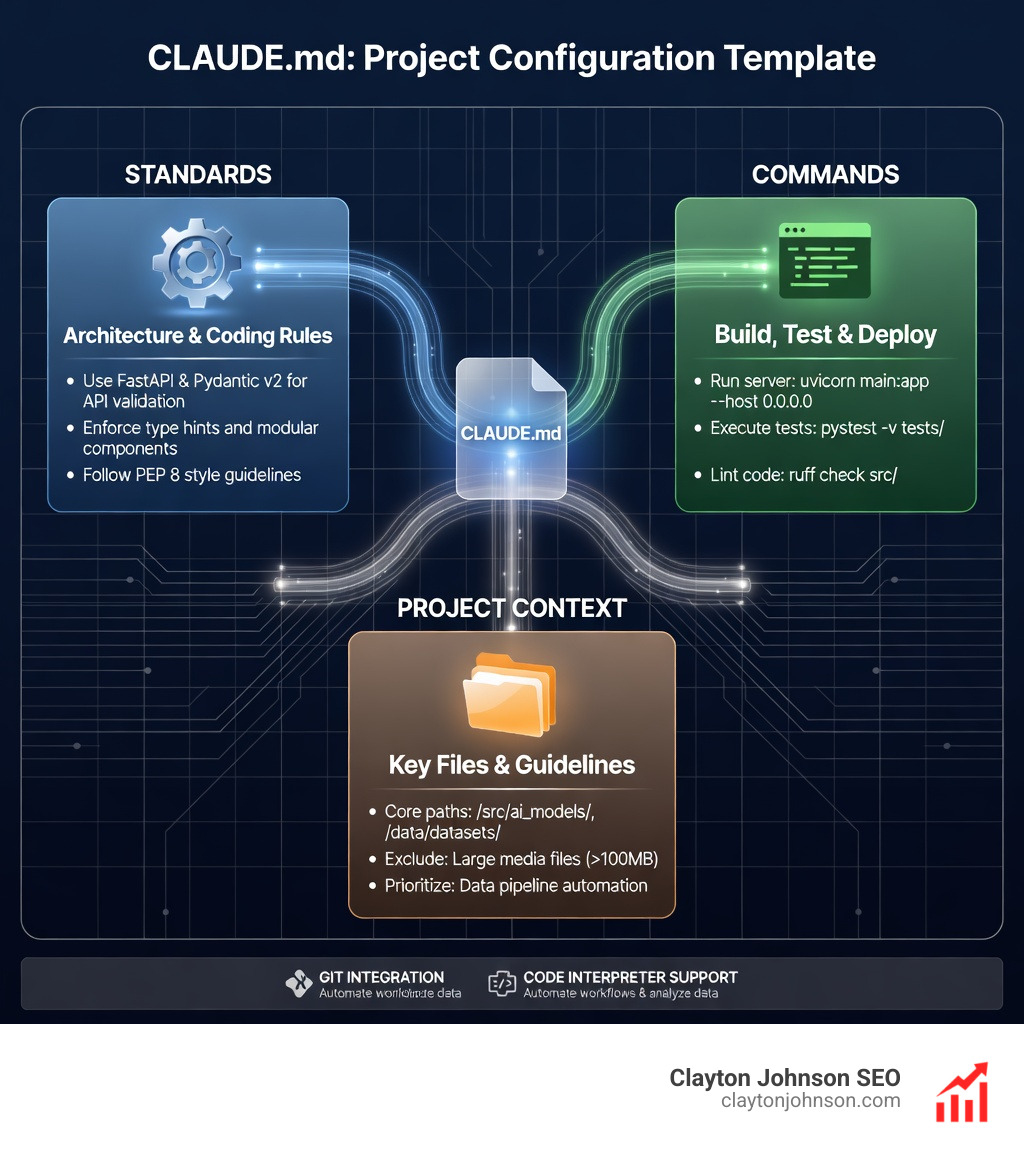
To keep Claude smart across long sessions, we use a CLAUDE.md file. This is a project-specific configuration file that Claude reads automatically. It should contain:
- Architecture standards (e.g., “We use FastAPI and Pydantic v2”).
- Build and test commands.
- Commonly used file paths.
Furthermore, Claude’s deep Git integration allows it to manage branches, write descriptive commit messages, and even open pull requests. By running Claude in headless mode (claude -p "..."), you can integrate these capabilities into your CI/CD pipelines, mastering AI coding workflows on GitHub to automate code reviews and security audits.
Frequently Asked Questions about Claude for Python Coding
What is the difference between Claude Code and the standard API?
Claude Code is a “highly agentic” tool. While the standard API just returns text, Claude Code can autonomously read your files, run terminal commands, and use tools to complete a task over several minutes. It includes a built-in agent loop that handles the “thinking” and “doing” phases of development.
How do I secure Claude’s access to my local file system?
Security is handled through permission_rules in your settings.json. You can define specific “Read Deny” and “Edit Allow/Deny” rules. Additionally, you should use hooks to intercept bash commands. For production environments, running Claude in a containerized sandbox is the gold standard for protection.
Can Claude for Python coding handle large data files?
Yes, but with limits. The server-side Code Interpreter supports file uploads up to 30MB. If you need to process larger datasets, the best practice is to use an MCP server to connect Claude to an external database (like Postgres or BigQuery) or a local file system tool that can stream data rather than uploading the whole file.
Conclusion
Mastering Claude for Python coding isn’t just about learning a new library; it’s about adopting a new way of building. By combining the Claude Agent SDK with custom MCP tools and robust security hooks, we can move away from manual scripting and toward autonomous systems that grow with our business.
At Clayton Johnson SEO, we focus on these AI-assisted workflows to help founders and marketing leaders execute strategy with measurable results. Whether you’re automating your SEO content systems or building custom growth tools, Claude provides the programmable intelligence needed to scale. If you’re looking for a partner to help diagnose your growth problems and implement these advanced strategies, reach out to an SEO Consultant on our team today.